Connect to the Finnhub MCP server using Claude and ChatGPT
Finnhub runs a hosted MCP server at mcp.finnhub.io so you can pull quotes, financials, estimates, earnings, SEC filings, ETF and mutual fund holdings, forex and crypto prices, economic data and alternative datasets directly into a Claude or ChatGPT conversation, no code required.
What is MCP?
MCP (Model Context Protocol) is an open standard that lets an AI assistant talk to an external data source through a small set of well-defined tools. Instead of copy-pasting numbers into the chat, you connect the assistant to the Finnhub MCP server once, and it pulls the data itself whenever your question needs it.
A few things worth knowing before you start:
- The server endpoint is https://mcp.finnhub.io/mcp and it speaks streamable HTTP
- Authentication is OAuth — log in with your existing Finnhub account, no API key to paste
- The assistant only sees the data returned by the tools it calls; it never gets your API key
- Access to each dataset follows the plan on your Finnhub account
- Because MCP is a standard, the same endpoint works in both Claude and ChatGPT
What data is available?
The MCP server exposes 70 tools covering equities, funds, forex, crypto, economic data and alternative datasets. You never have to name a tool yourself — the assistant picks whichever ones your question needs — but it helps to know the ground it covers.
Company fundamentals
- company_profile — company profile by symbol, ISIN or CUSIP
- quote — latest quote for a symbol
- executive — company executives
- financials — balance sheet, income statement and cash flow
- basic_financials — key metrics and ratios
- peers — peer companies by sector, industry or sub-industry
- dividends — dividend history
- ohlc — historical candles at your chosen resolution
- historical_market_cap — market capitalisation over time
- historical_employee_count — headcount over time
- revenue_breakdown and revenue_breakdown_kpi — revenue by segment and product, plus company KPIs
Analyst views and estimates
- recommendation_trends — analyst recommendation trends
- price_target — analyst price targets
- upgrade_downgrade — analyst upgrades and downgrades
- eps_estimates and revenue_estimates — forward top and bottom line estimates
- ebitda_estimates, ebit_estimates, gross_income_estimates, pretax_income_estimates and net_income_estimates — forward earnings estimates down the income statement
- fcf_estimates, ocf_estimates and capex_estimates — forward cash flow and capital spending estimates
- dps_estimates — forward dividend per share estimates
Earnings, filings and calendars
- earnings_calendar — upcoming and historical earnings dates
- earnings_call_transcript and earnings_call_transcript_list — call transcripts
- earnings_call_live — live and upcoming earnings call audio
- sec_filings — SEC filings by symbol, CIK, form type or access number
- ipo_calendar — upcoming and past IPOs
ETFs and mutual funds
- etf_profile and mutual_fund_profile — fund profile by symbol or ISIN
- etf_holdings and mutual_fund_holdings — current and historical constituents
- etf_country_exposure and mutual_fund_country_exposure — exposure by country
- etf_sector_exposure and mutual_fund_sector_exposure — exposure by sector
- etf_allocation — ETF asset allocation
Forex and crypto
- forex_exchanges and forex_symbols — supported venues and pairs
- forex_rates — rates for any base currency, latest or on a given date
- forex_candles — historical FX candles
- crypto_exchanges and crypto_symbols — supported venues and pairs
- crypto_profile — profile for a coin such as BTC or ETH
- crypto_candles — historical crypto candles
Economic data
- economic_calendar — scheduled macro releases
- economic_codes — the catalogue of available economic series
- economic_data — the history of any series in that catalogue
- sector_metrics — aggregated sector metrics by region
Alternative data
- social_sentiment — social media sentiment for a symbol
- newsroom and press_releases — company news and major press releases
- company_presentation — investor presentations
- esg_scores and historical_esg_scores — ESG scores, latest and over time
- supply_chain — supplier and customer relationships
- uspto_patents — patent applications
- visa_applications — H-1B and other visa filings
- senate_lobbying and usa_spending — lobbying activity and government contracts
- congressional_trading — trades disclosed by members of Congress
- investment_themes — thematic investing baskets
- bank_branches — branch list for a bank
- airline_price_index — airline ticket price index
- fda_committee_calendar — FDA advisory committee meetings
- covid19_us — US COVID-19 case data by state
Before you start
- A Finnhub account — register here if you do not have one
- Claude on the web or the desktop app, or ChatGPT
- Custom connectors and plugins are available on paid plans. If you are on a team, business or enterprise workspace, an admin may need to allow them first
Connect from Claude web or desktop
Open Claude, go to Settings >> Connectors, then click Add and choose "Add custom connector".
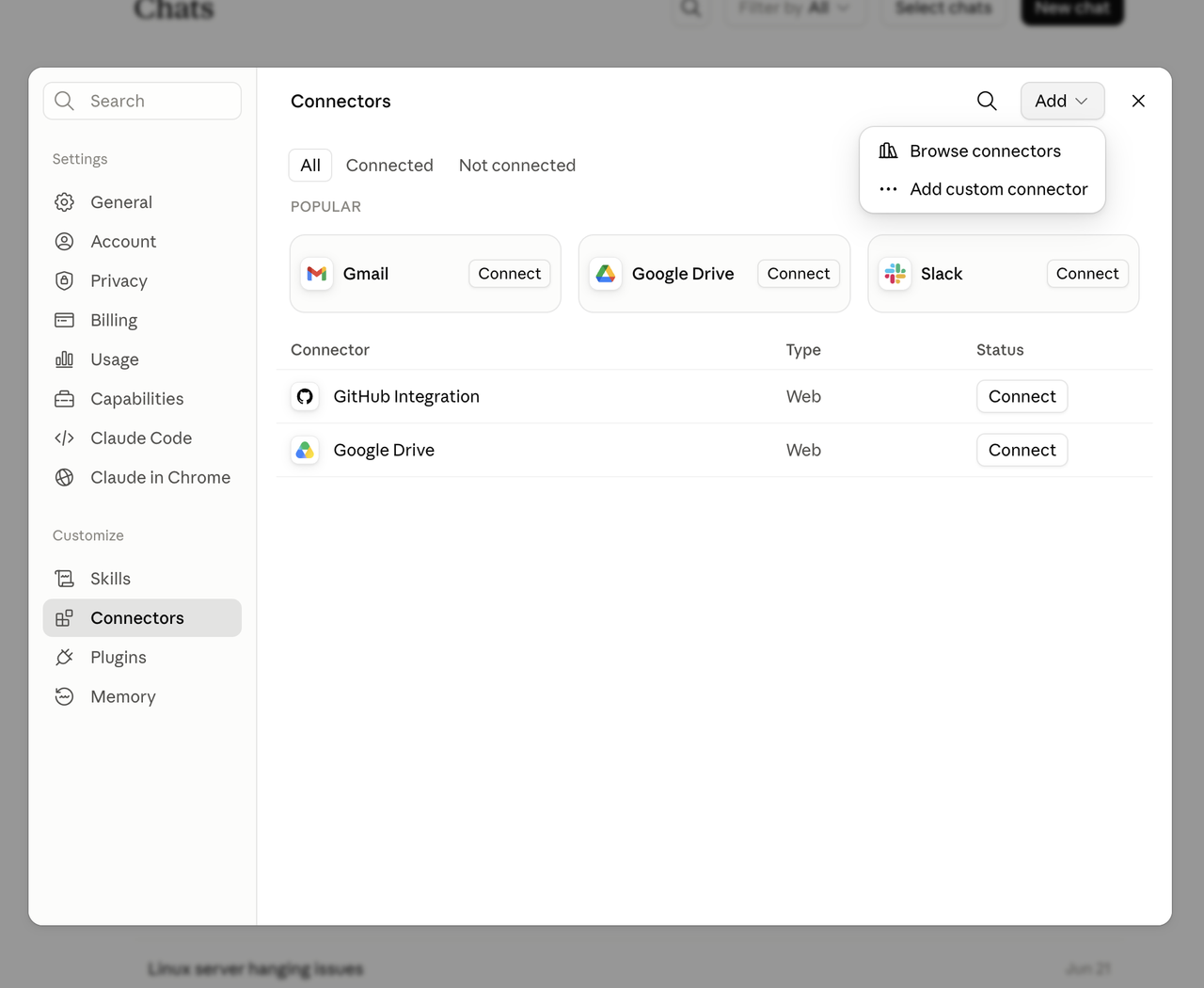
Fill in the dialog:
- Give it a name, for example Finnhub
- Paste the server URL: https://mcp.finnhub.io/mcp
- Expand Advanced settings and enter claude as the OAuth Client ID
- Leave the OAuth Client Secret empty
- Click Add
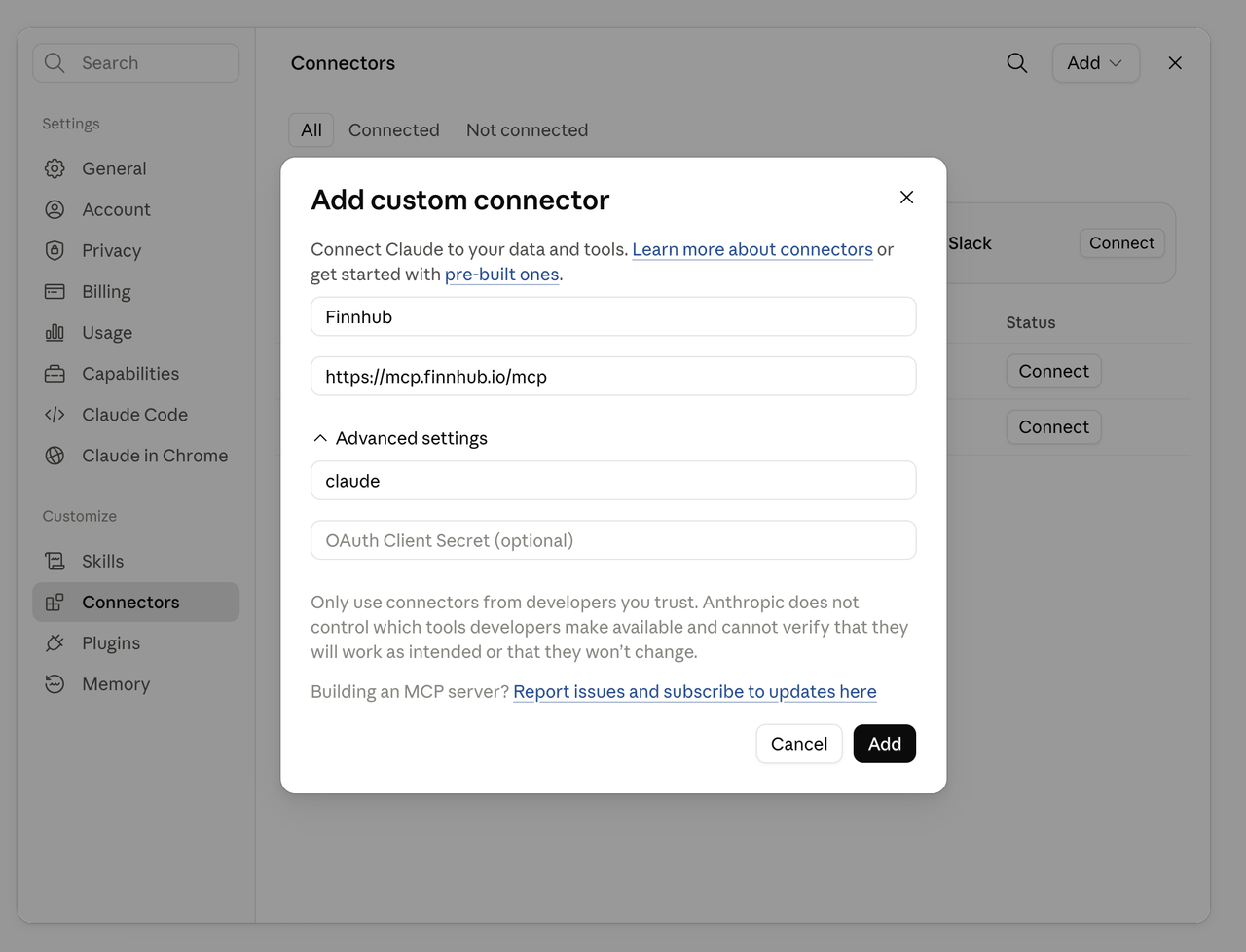
A Finnhub login window opens. Sign in with your Finnhub account and click Allow to approve the connection. Back in Claude, the connector shows as connected and its tools are listed.
From then on, start a new chat and make sure the Finnhub connector is enabled in the tools menu of the message box. Claude will ask for your approval the first time it calls a tool.
Connect from ChatGPT
ChatGPT calls these plugins rather than connectors:
- Open ChatGPT and go to Settings >> Plugins
- Turn on Developer mode so you can add your own MCP server
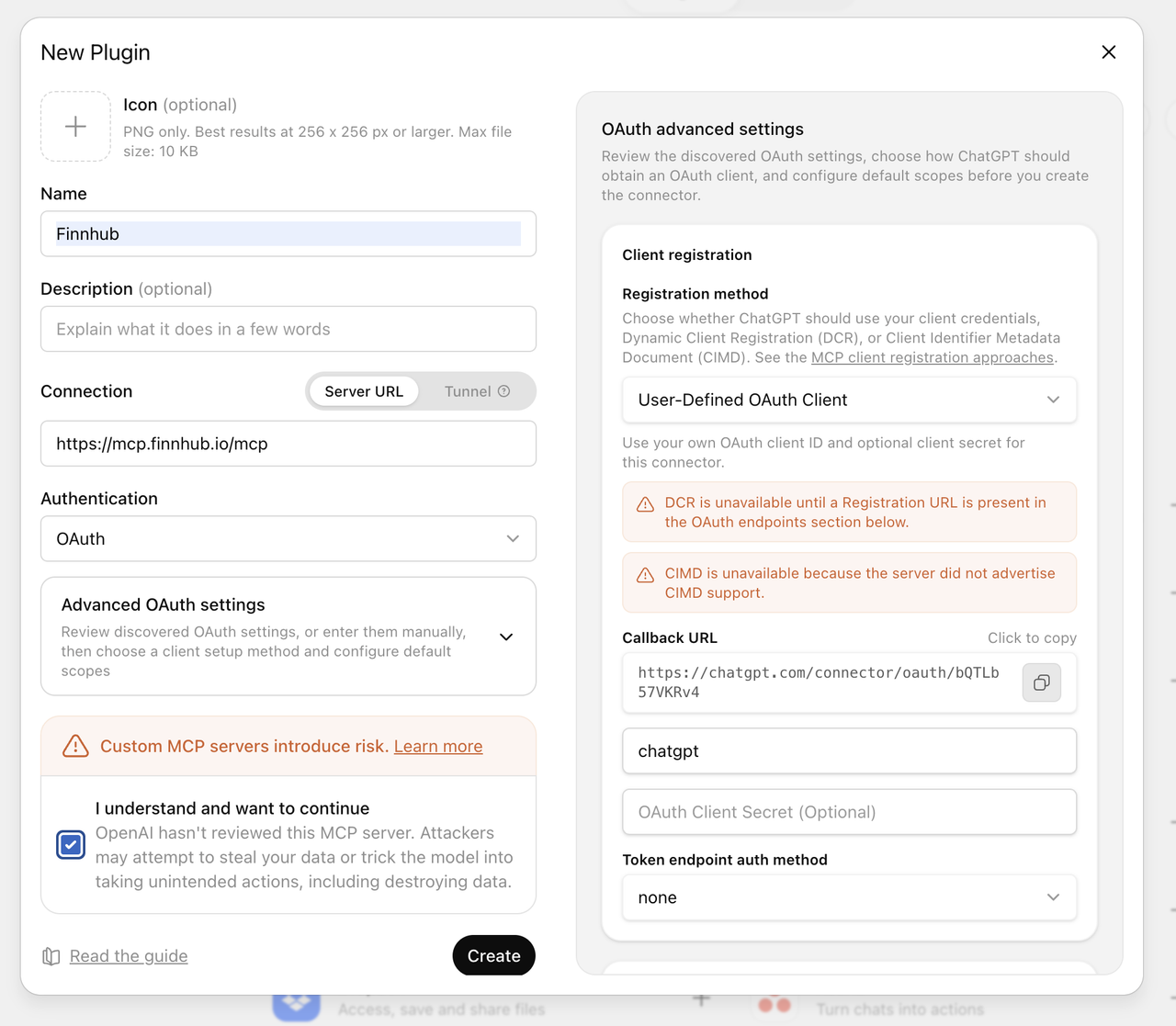
- Click Create to open the New Plugin dialog
- Name it Finnhub
- Leave Connection on Server URL and paste https://mcp.finnhub.io/mcp
- Set Authentication to OAuth
- Open Advanced OAuth settings and pick User-Defined OAuth Client as the registration method
- Enter chatgpt as the OAuth Client ID, leave the client secret empty, and leave Token endpoint auth method on none
- Tick "I understand and want to continue" and click Create
- Sign in with your Finnhub account and approve the connection
- In a new chat, open the tools menu and enable the Finnhub plugin
Plugins need a paid ChatGPT plan, and on Business or Enterprise workspaces a workspace admin has to allow them first.
Things to ask
Once connected, you just chat normally. The assistant picks the right tools on its own. Some examples:
- "What is AAPL trading at right now, and how does its P/E compare to its peers?"
- "Pull the last 5 years of annual income statements for MSFT and show revenue growth per year."
- "Summarise the analyst price targets and recent upgrades/downgrades for NVDA."
- a
- "Which S&P names report earnings next week?"
- "Get TSLA's latest earnings call transcript and list the three things management repeated the most."
- "Show me every 8-K COST filed this year and flag anything unusual."
- "Chart daily closes for AMZN from January to today and tell me the largest drawdown."
Because the tools return raw Finnhub data, you can chain them — ask for a screen, then ask it to dig into whichever names came back interesting.
Troubleshooting
- It will not authenticate — make sure you are logged into finnhub.io in the same browser, check that the OAuth Client ID is claude or chatgpt for the assistant you are on, then remove and re-add it
- A tool returns no data — the dataset may not be included in your plan, or the symbol may not be covered. Ask the assistant to show the raw error it received
- The tools are never called — check that Finnhub is toggled on for that conversation, and name the data you want explicitly ("use Finnhub to get...")
- Rate limits — MCP calls count against the same limits as your API key, so a long back-and-forth can hit them. Wait a minute and retry
The MCP server is a thin layer over the Finnhub REST API, so anything you can already fetch with your API key you can now simply ask for. If you would rather work with the endpoints directly, the full API documentation covers every field returned by these tools.